
 Default
- Private Courses
- • Standard Chinese
- • Children’s Chinese
- • O.B.C Chinese
- • Business Chinese
- • HSK Training Program
- • Quick Chinese
- • Easy Chinese 100
- • Conversation Practice
- • Chinese Character
Writing
- About Private Class
- • Introduction
- • User Guide
- • Full-time Teachers
- • Features
- • Rules
- • Pricing Packages


Home -> Private Class -> Download and install Skype and its plugs-in
Windows Client System requirements
- PC running Windows 2000 or XP. (Windows 2000 users require DirectX 9.0 for video calls).
- Internet connection (broadband is best, GPRS is not supported for voice calls, and results may vary on a satellite connection).
- Speakers and microphone - built-in or separate.
- To make video calls you’ll need a computer with at least a 1GHz processor, 256 MB RAM and of course a webcam.
- We also recommend that you have at least a 800 MHz processor, 256 MB RAM and 50 MB free disk space on your hard drive.
- If file doesn’t load automatically, Start download again.
On the File Download window click Run
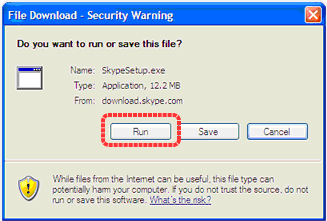
A window will open asking what you want to do with a file called SkypeSetup.exe. Click ‘Run’.
You might see a confirmation message, asking if you're sure you want to run this software. Click ‘Run’ again.
After the installation has finished, you can open Skype at any time by clicking the icon on your desktop or in your system tray.

When the download has finished, the Skype Setup Wizard will appear and guide you through the rest of the installation.

After you launch Skype, click Skype Test Call to check your earphone and microphone.
- Follow the installation instructions given on the TalkAndwrite webpage.
- When you have successfully installed the program your teacher will invite you to join a session.
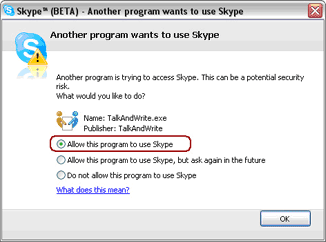
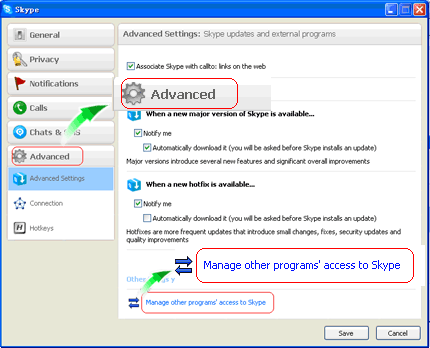
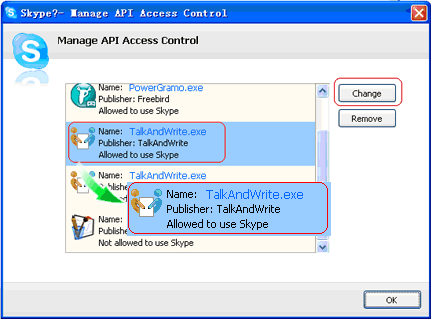
- When you start TalkAndWrite for the first time, you will see the following Skype window. Select the option "Allow this program to use Skype".
Before class, please close all unnecessary application programs to get a proper network and good quality connection.
-
Login with your Skype account, When in the lower right hand corner, this icon will appear
 Our Study Advisors are online 24/7, Contact them through the Contacts List at Skype Id : chinesehour, displayed as chinesehour_advisor
 - • Our Study Advisor will contact a teacher to give you a class. Before a class, your teacher will give you this link
http://www.chinesehour.com/privateclass/lessons-res/?token=b5f756575497df42d344f3efe2341870. To download the courseware your current courseware, please click it, and save it to your computer. - Double-click, or right-click the mouse button on this file icon to open it with TalkAndWrite.
- When you have successfully opened the courseware with TalkAndWrite please let your teacher know and s/he will invite you to take part in the lesson.
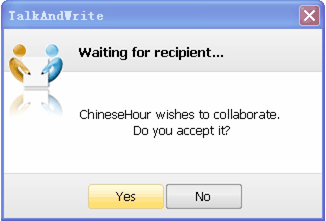
 will appear in your TalkAndWrite, please wait patiently after connecting successfully, You will then send a message and notes on the courseware.
If you can see the red and blue pen icon on the TalkAndWrite interface, and the pane on the right appears normal, the software connect successfully.
Note:If there is an interruption in sound or video during use, please exit TalkAndWrite and re-start it. If necessary exit Skype and login again.
 |
| Other ways to contact the advisor: | |||||||||||
|
|
|
|||||||||
|
|
|
|||||||||


