
 Default


How to get started with Live Class?
| This article covers what you should do prior to attending Chinese Conversation Class LIVETM: 1.Ensure your computer meets the minimum system requirements recommended for running an Elluminate Live! session on your computer. 2.Download and install Java Web Start, which is required to launch an Elluminate Live! session. 3.Join the testing room to test your connection and configure your audio. 4.Join the real-time Conversation Class on time and start to learn! Minimum Client System Requirements Before you can get started in an Live Class session, you should ensure that your computer is able to support the needs of the collaboration environment. Your computer should meet or exceed the following minimum requirements. Windows Client Windows 2000/XP/Vista Pentium III 500 MHz processor 256 MB RAM Mac Client Mac OS X 10.2.8, 10.3.9 or 10.4 G3, G4, G5 or Intel Processor By the way,ensure that your microphone and speakers are working properly. Download and Install Java Web Start Java Web Start is required to launch into an Live Class session. On the Macintosh, it is pre-installed and automatically updated. For the other operating systems, you will need to download and install it. The installation of Java Web Start is a one-time process that does not need to be repeated. The download can take up to 10-15 minutes (or less depending on the speed of your Internet connection). Please ensure that you allow sufficient time to complete the download and installation before your first session. To do this, follow the next steps: 1. When you see the reminder: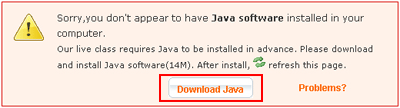 Then click "Download Java" to download. Save the file on your computer. 2.Double click the file you just downloaded to install it 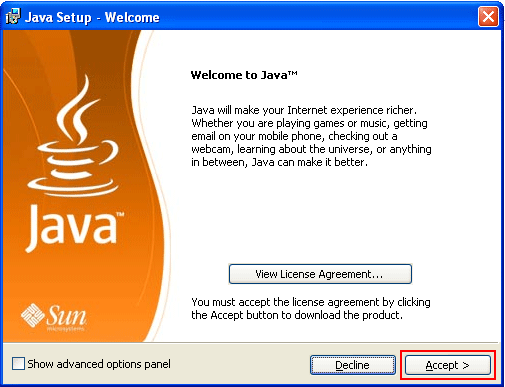 Accept the agreement, then you can install Java Web StartTM on you computer. 3.Remember to refresh the live class home page after the installation finished. Press "Ctrl+F5" or use  to refresh the homepage of live class, you will not see the Java software reminder again. to refresh the homepage of live class, you will not see the Java software reminder again. Then you are ready to join the testing room. Join the testing room to test your connection and configure your audio During your first session, you need to configure your microphone and speakers. And we offer a testing room for you to do that and also it enables you to get familiar with the learning environment of the platform. This step may take you longer time for the first time users. The time is worth waiting because it's a one-time process that does not need to be repeated, which is to say, next time you can join the real-time class much faster and directly. When you finally enter the testing room, you will see: 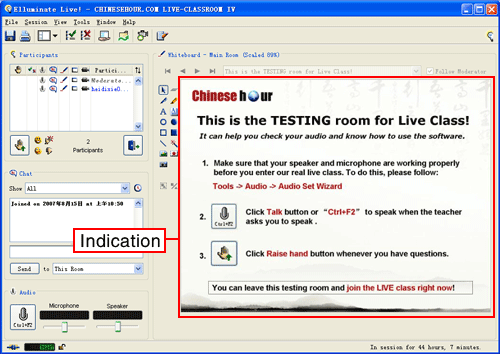 Please follow the indication to check your audio device and etc. Then close the testing room when you want to join the real-time class, because it will not be held in the testing room. There is no need to install anything when you access the LIVE Class again. As the countdown time ends and you just click “enter class” button, and your PC will automatically artivate the LIVE class software and access to the class in less than a minute. NOTICE: If you are surfing our website by Firefox instead of “IE explorer”, you may see the following pop-up window: 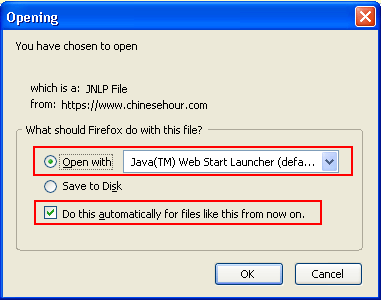 Remember to “Open” instead of to “Save”. And you may tick the checkbox to “do this automatically for files like this from now on”. So you will not be disturbed again. Now you are technically ready to join our Chinese Conversation Class LIVE! Join the real-time conversation class Conversation Class LIVE™ begins every hour on the hour. Remember to get to live class on time! Access will close after the class has begun by 30 minutes. You will often see the countdown time. When the countdown of the last live class is over, click "Enter Class" button to access the online classroom.  In less than one minute's launching, you will be in the real-time class to communicate with your Chinese teacher and other international classmates. Any questions aboutlearning with Live Class? Click here to get more information on how the live class works. |