|
Steps to complete during first time use:
-
The first step is to approve the download Java Web Start. When downloading Java Web Start you will be prompted to confirm the action taken for "java-installer-windows.exe" the default action is to Permit Always.

If you confirm this step, Java Web Start will install correctly.
If you receive the error message "Java Installer Connection Error" as shown below, you will need to download and install our Offline installer.
-
The second step is to approve Elluminate Live! to launch into a session. During this process, Elluminate Live! will download a set of files to run.
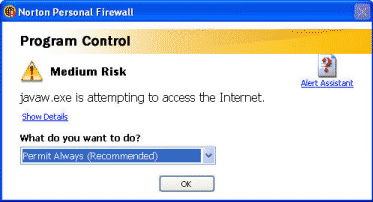
When you select "Permit Always", Elluminate Live! will continue to load.
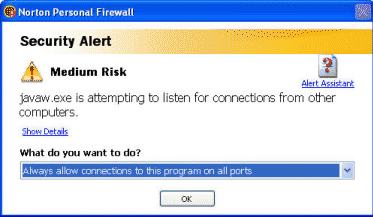
You may also be presented with the following confirmation step. You will need to change the option to "Always allow connections to this program on all ports". This will allow Elluminate Live! to communicate and therefore run properly.
Steps to complete if you have set permissions:
If you need to configure your Norton Personal Firewall after you have completed the initial launch of Elluminate Live!:
-
Open the application, select "Personal Firewall", and the click the "Configure" button.

-
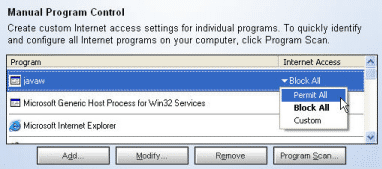
Under the "Programs" tab find the program "javaw", click the Internet Access that has been set for it (Block All) and select "Permit All".
-
Click "Ok" and "Close".
|

 Default